Explainer: How Unifrog helps you meet the Enrichment Benchmarks

Below we detail how you can use Unifrog to meet the Enrichment Benchmarks.
The background
The Department for Education has published 8 benchmarks for enrichment, against which schools and colleges can evaluate their provision and make improvements. The Enrichment Benchmarks are:
- Align enrichment with broader priorities
- Provide multiple and varied opportunities
Covering at least these five categories:- Civic engagement
- Arts and culture
- Nature and the outdoors
- Sport and physical activities
- Life skills
- Communicate with parents and celebrate participation
- Consider pupil, parent and staff feedback
- Make activities accessible and engaging
- Work with external partners
- Focus on outcomes
- Keep improving enrichment offer
The guidance is non-statutory, but Ofsted says that from September 2026 it will look at a school’s enrichment as part of how it assesses personal development.
How Unifrog helps with recording and evidencing the Enrichment Benchmarks
RECORDING ENRICHMENT
- The Interactions tool: your centralised system for recording enrichment
The Interactions tool is the main place in Unifrog where schools and colleges record enrichment and clubs. When teachers add an interaction, they can select that it is the type ‘Enrichment / Club’.
In addition to being the centralised system for recording a school’s or college’s enrichment offering, the interactions tool helps with recording things related to the Enrichment Benchmarks in two specific ways:
- External involvement: On an interaction you can record that an external person is involved in it.
- Student feedback: You can set up an interaction so that students are asked to confirm that they attended, and to give feedback (giving it a rating out of 10, and leaving a comment).
- External involvement: On an interaction you can record that an external person is involved in it.
Tip: you can record ongoing enrichment - for example a weekly after school club - with multiple interactions, or as just one interaction with the ‘Date finished’ marked as ‘Ongoing’. The former means you are able to ask students to confirm attendance and give feedback every week, and the latter is one-and-done.
- The Activities tool: where students can record enrichment
The Activities tool is where students can themselves log enrichment they have taken part in. This can be useful to capture enrichment that isn’t being organised directly by the school / college.
EVIDENCING ENRICHMENT
- Seeing in one place all the enrichment logged for one student
On the ‘Interactions + Activities’ page of a student’s profile, teachers can see in one place the interactions and activities that have been logged for and by a student. They can filter by the type ‘Enrichment / Club’: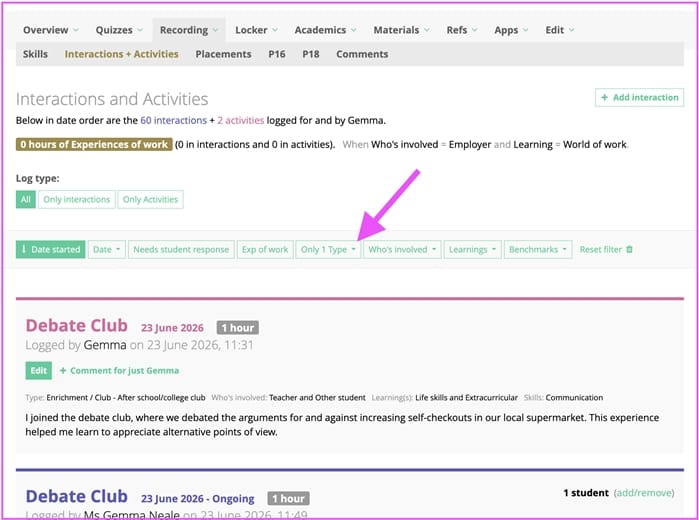
- Seeing what enrichment has been logged for multiple students
To see in one go what enrichment has been logged for multiple students:
- First go to the Advanced view of the Manage page, and select the right year group.
- Then sort by 'Interactions and Activities: by Type all time' or 'Interactions and Activities: by Type this year'.
You'll see for many students in one go a count of the interactions and activities with the type ‘Enrichment / Club’. Clicking on one of the green or red tiles takes you to the relevant student's profile, filtered for the interactions or activities of the right type.
- On the Advanced view of the Manage page you can use relevant filters to drill down further, for example:
- Use the interactions filter ‘Enrichment / Club logged’ to see only students with this type of interaction logged;
- Use the Activities filter ‘No Enrichment / Club recorded’ to see only students who have not logged an enrichment activity.
- First go to the Advanced view of the Manage page, and select the right year group.
- A visual representation in Charts

The Charts on the teacher side give you a visual representation of the enrichment interactions and activities logged by teachers and students.
You can filter the charts so they show exactly what you need. For example, on the chart for ‘Students adding activities by year group’ you can filter for the type ‘all Enrichment / Club’.
Here’s a screenshot of this chart. There is an equivalent one for interactions: 
- Downloading the data and manipulating it
To download all the enrichment that has been logged on Unifrog in the Interactions and Activities tools, go to the Advanced view of the Manage page, then on the footer of this page click the ‘download’ button.
You can choose:- To download interactions and activities together or separately
- To see the data organised by interaction, or by student
- To see the data ‘all time’, ‘this academic year’, or ‘last academic year’
- To have the data as CSVs (spreadsheets you can manipulate) or as PDFs (which you can give to people, eg parents).
When you open a CSV, you can filter to see only interactions and activities of the type ‘Enrichment / Club’. All of the information related to each interaction is included in the CSV, including the title, so you can easily see if you have covered the five different categories.
How Unifrog helps with delivering the Enrichment Benchmarks
As well as recording and evidencing the enrichment that students have had, Unifrog helps you to deliver the Enrichment Benchmarks through:
- Teaching resources: Providing you with teaching resources that you can use to deliver enrichment activities
- Parent communication: Making it easy to communicate to parents what enrichment their children have had
- Student feedback: Getting feedback on enrichment activities from students
- External partners: Giving you the biggest database in the UK of employers who are up for providing your students with opportunities
Here we cover each of these in turn:
TEACHING RESOURCES FOR ENRICHMENT
In Unifrog’s Resources library you have access to 100s of teaching resources which can help you deliver accessible and engaging enrichment activities.
The teaching materials are tagged on various criteria relevant to enrichment, and you can find them in different ways:
- Via the Start page: Use the sections on the Resource library’s start page, like:
- In the ‘By Logistics’ section, use the ‘Extracurricular’ filter
- In the ‘By PSHE topic’ section, use the ‘Life skills’ and ‘Citizenship’ filters
- In the ‘By Skills’ section, filter for particular skills
- The ‘Materials for events’ carousel towards the bottom of the start page browse resources designed to run off-timetable enrichment activities
- Via the Longlist: Below the keyword box at the top of the start page, search by ‘All year groups’ or a specific age range - this takes you to the Longlist - then use the filters, for example:
- ‘Drop-down days and Themed weeks’ within the ‘Miscellaneous’ filter
- ‘Citizenship’ within the ‘PSHE’ filter
PARENTS SEEING INTERACTIONS
The Interactions tool is the main way to record enrichment on Unifrog, and there are two ways that adding interactions lets you communicate with parents:
- Parent/Guardian Daily Summary email: This is an automated email sent to parents every day after there has been some sort of activity on Unifrog by or for a parent’s child.
If a teacher has added an interaction for a parent’s child, the parent daily summary email includes a summary of the interaction. You can see all the automated emails sent by Unifrog here.
- Parent accounts: Parents can have their own Unifrog accounts, which allow them to use the platform like their children can, and to see a summary of the interactions that have been added for their children.
The summary of interactions gives parents a good understanding on the whole of the offer the school/college is providing for their child. Also, when a teacher adds an interaction they can choose to add a note specifically for parents, which appears to parents on their parent accounts.
Read more about parent accounts here.
STUDENTS CONFIRMING ATTENDANCE AND GIVING FEEDBACK ON INTERACTIONS
When a teacher is adding an interaction, they can choose to ask students to confirm their attendance, and to give feedback (a rating out of 10, and a comment): 
Teachers can see the ratings and comments:
- For each interaction: Where each interaction appears on the Interactions and Activities page of a student’s profile, a teacher can see that individual student’s rating and comment.
Here there is also a ‘Feedback’ button which lets a teacher download the feedback from all students for that interaction.
- For all interactions: In the downloads for interactions that are available on the Downloads page for the Advanced view of the Manage page, teachers can download the ratings and comments for all interactions.
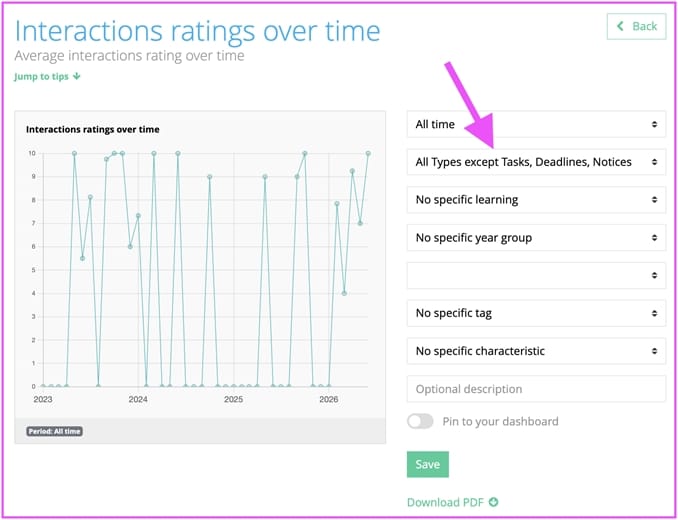
- As a visual representation in Charts: Teachers can see a visual representation of students’ ratings for interactions in the ‘Interactions ratings over time’ chart. Filter by type to see only interactions of the type ‘Enrichment / Club’:

FINDING EXTERNAL PEOPLE TO INVOLVE IN ENRICHMENT
One of the Enrichment Benchmarks is to work with external partners to deliver enrichment, and Unifrog can help you with this.
Unifrog’s Placements contacts database comes as part of a subscription to the Placements tool. It’s the UK’s biggest database of employers who are up for hosting students on work experience, and also being involved in other ways - for example visiting a school/college to support an enrichment activity. There are more than 50,000 employers on the database, with more joining every day. Read more about the database here.
Here is a screenshot of the Placements contacts database, filtered to see employers interested in ‘Other opportunities’, which includes enrichment opportunities: 